Part 1. Planning and Procurement Lead
"Agree the file format for the playback software, not just a specification sheet."
- Agree the playback software and delivery specifications: Requirements differ depending on whether video is embedded in PowerPoint or played through a dedicated media server or separate player. Do not simply write 'MP4' in the delivery requirements. Agree the resolution, frame rate and audio channels with the on-site systems supplier and request them clearly from the production company.
- Check the packaged files containing video: If video is linked to PowerPoint as a separate file, moving it to the event PC can break the path. For acceptance, request the entire delivery folder containing the presentation and its linked video files, rather than only the presentation file.
- Obtain an offline playback file: Online video links, such as YouTube, may fail depending on the venue's internet connection, and editing features such as trimming or fading may not apply. Obtain an actual video file that can play offline as a fallback in advance directly from the rights holder or provider.
Part 2. Video and Audio Director
"Do not approve event playback based only on editing-PC speakers and a preview screen."
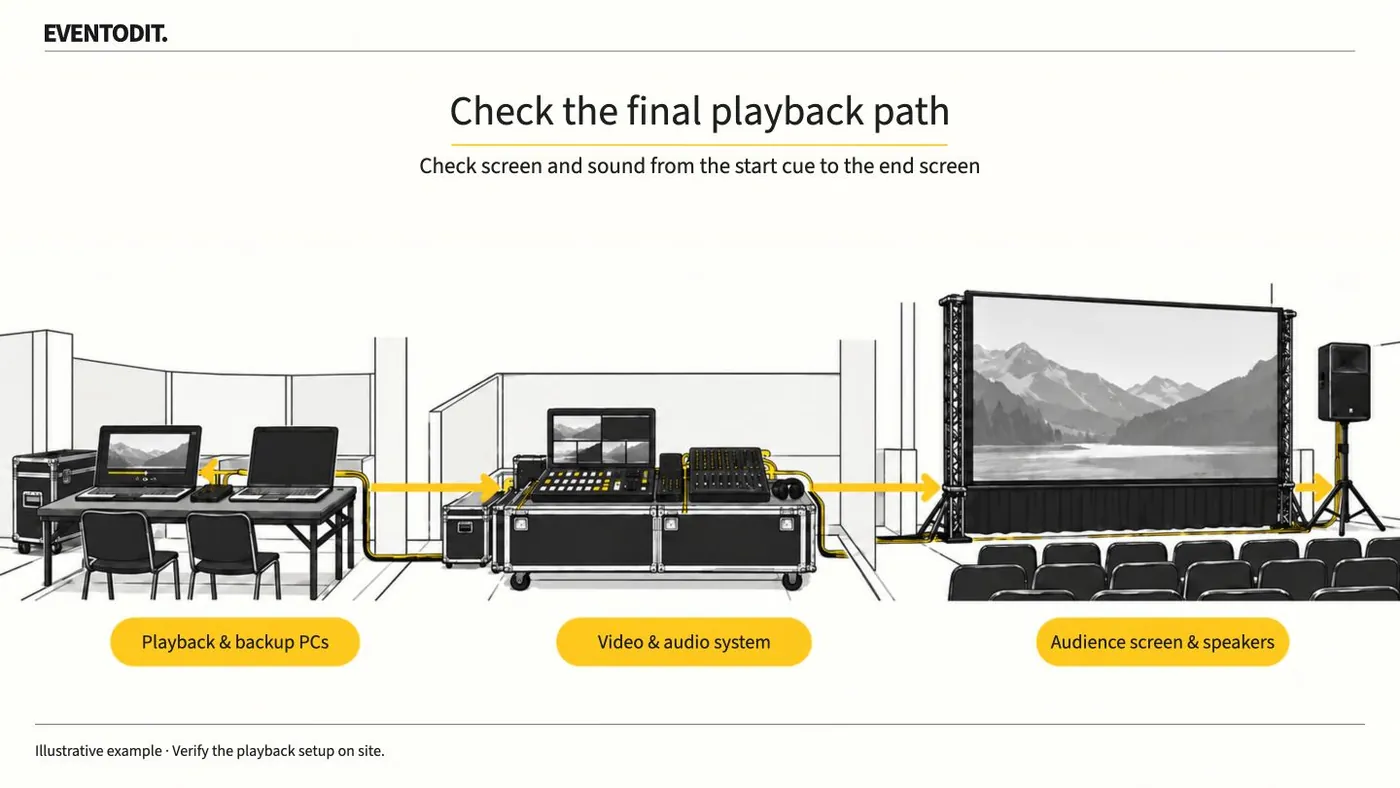
- Check the final outputs offline: Do not approve event playback just because the editing PC screen or monitor speakers showed no problems. Connect the full switcher, converter and cable path and check the actual output on audience speakers and the main LED wall or screen in full-screen or slide-show mode.
- Set the start cue and end screen: Confirm that the video playback cue in the cue sheet, such as waiting for a click or automatic playback, matches the actual PowerPoint setting. Set up the screen that follows the video in advance, such as an intended black screen or standby logo.
- Verify the complete playback duration: For important videos, play the entire file from the first frame through the final screen transition and check for freezes, missing audio, cropped captions and other errors. Test the backup PC with the same files and settings as well.
Scroll sideways if needed to compare the branches.
- Check video outputVideo lead: final PC, slide show, aspect ratio, cropping, captions, start and finish
- Check sound outputSound lead: voices and channels through actual venue speakers and routing
Part 3. Floor Operations and Stage Manager
"Without version control, a carefully checked rehearsal can be rendered useless."
- Manage file versions and approval history: If a video is revised during rehearsal and a new file arrives, do not simply overwrite the previously approved file. Record the new version and check time in the filename, and separately identify on the checklist or on-site playback approval sheet which file completed final on-site checks and was approved.
- Fully retest revised files: If a file is delivered with changes to video format or duration, repeat the entire acceptance process from the beginning, including start, end, audio and on-site outputs.
- Update the cue sheet when duration changes: If a video revision makes playback longer or shorter, it directly affects the cue timing for the next programme item. Update the running cue sheet immediately and communicate the changes to the relevant staff.
- Receive revisionRecord changed scope and new version
- Check impactsCompare duration, cue sheet and connection route
- Retest the changed fileCheck start, finish, audio and venue output
Error or untested
Verified
- Reapprove and replaceUpdate final folder and approval list
Retain the previous version separately. Retest linked paths if filenames or folders change.
Final check before use: Before the event starts, conduct a final cross-check to ensure that the video delivery list, final approval of revised files and the main and backup PC update status are recorded without omissions.
Conditions for applying this elsewhere
Format guidance concerns PowerPoint. Confirm supported specifications for dedicated media servers or other players with the technical lead.
Information not established
No universal resolution or frame rate is specified; technical personnel must confirm signal standards and on-site settings.
Reference material
- Microsoft Support — Video and audio file formats supported in PowerPoint: recommended H.264/AAC MP4 format. Checked 2026.10.20.
- Microsoft Support — Insert and play a video file from your computer: embedded and linked video, and start behaviour. Checked 2026.10.20.
- Microsoft Support — Insert a video from YouTube or another site: internet connection and limits on playback features. Checked 2026.10.20.
Have a correction or additional evidence? Request a correction