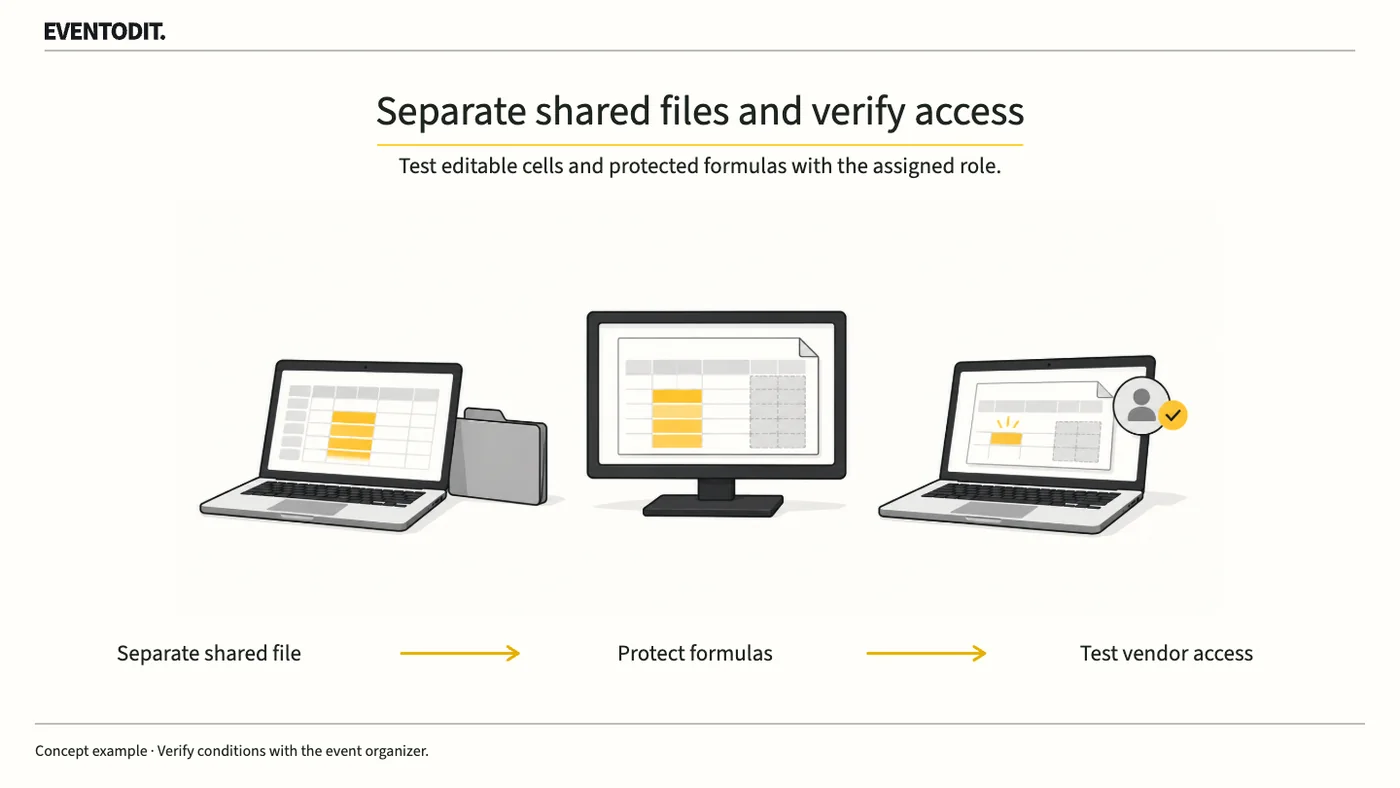
Part 1. Planning and operations-sheet lead
"Hiding a sheet is not a security measure. Separate material for external sharing and check folder access."
- Recognise the limits of hidden sheets and protected ranges: Hiding a sheet or protecting a range in Google Sheets does not control who can view the file. Google says editors can unhide sheets, and viewers who are permitted to make a copy can unhide them in that copy. Hiding tabs alone does not complete the sharing review.
- Prepare a separate external file: If a load-in schedule shared with suppliers includes internal costs, budgets or another supplier’s contract terms, do not share the original with those sheets hidden. Create a separate file containing only columns and sheets that may actually be disclosed to those recipients.
- Remove external references and data connections: After separating the files, check that the external file does not unnecessarily pull private sheets or internal figures back in through formulas or other data connections, and remove any such connections. Also review existing source-access authorisations for IMPORTRANGE or similar connections.
- Compare inherited folder access with direct sharing: Google Drive access can come from a parent folder as well as a direct file share. Check the file and its parent folders together for recipients, roles and general-access settings.
- Follow organisational security policy: Check any restrictions on external sharing for a work or school account, and distinguish suppliers who only need to view from those who must enter data. Do not broadly enable link access or remove organisational restrictions for convenience.
Part 2. Sheet design and formula protection
"An edit warning does not block changes. Separate protected ranges from input-cell exceptions."
- Distinguish an edit warning from an access restriction: In Protect sheets and ranges, showing a warning when editing only prompts the user and does not prevent a change. To protect formulas from unintended edits, restrict the range to the specified editors.
- Specify protected ranges and input exceptions: Separate formulas, totals and reference times that must retain their integrity from cells where suppliers must enter information such as estimated arrival times. When protecting an entire sheet, leave the specific cells needed for collaboration as exceptions.
- Identify permitted input cells in advance: Protection without visual cues or instructions can block legitimate on-site input. Format editable areas so they can be identified clearly and explain how to use them.
- Apply a suitable level of protection: Decide during design whether a cell only needs a warning before editing or whether a critical formula range must restrict unauthorised editors, and apply the appropriate setting.
Part 3. Collaborator-account review and event operations
"Do not finish the review in an administrator’s view. Test input and restrictions using the supplier’s actual role."
- Test with an account matching the supplier’s role: An administrator’s view alone is not enough. Use an authorised test account with the Viewer or Editor role intended for the supplier and verify that the shared file opens as expected.
- Test allowed inputs and blocked formula edits: Check that text and numbers can be entered in the intended input cells, and that attempts to change protected formulas or reference times are restricted as intended. Use the Viewer account for access and viewing, and an Editor account to test inputs and protected ranges. A Viewer’s inability to edit does not establish that range protection works.
- Avoid exposing sensitive test data: Use fictitious values when testing access and input; do not enter real contract prices or other internal sensitive information as test material.
- Recheck with the same role after fixes: If a sharing setting or protected range is corrected, sign in again with an account matching the supplier’s role and confirm the change instead of checking only as an administrator.
- Maintain one handover record: Record the Drive locations of the file and folders, recipients and roles, protected ranges and input exceptions, and the test accounts and results in the event team’s existing operations-sheet management record.
Scroll sideways if needed to compare the branches.
- Check viewing accessCompare recipients and roles with parent-folder permissions.
- Check editing behaviourReview formula protection and required input exceptions.
Hidden tabs and protected ranges do not replace file-access controls. The responsible owner follows the organisation’s policy.
Use the form for the next handover
Use the [Shared-file permission and input checks](/en/templates/shared-file-permission-check.html) for the records described here. The XLSX contains Blank, Example and Instructions sheets. Write your event in Blank; the fictional example is a guide to what to enter.
Check internal data/source links and file/folder access. Test Viewer access and Editor permitted input/protected edits separately.
The administrator hands access/protection and test records to the workbook owner. That owner receives the recipient list and responsibility for retesting changes.
Final check before use: Before sharing a joint operations sheet externally or collecting entries, cross-check that internal source material has been separated, Drive folder inheritance and viewing access have been reviewed, formula protection and input exceptions have been set, and tests with accounts matching supplier roles are complete.
Conditions for applying this elsewhere
Applies official Google Sheets and Drive guidance. Check organisational policy, inherited folder permissions and actual account capabilities.
Information not established
No real event file or account access has been inspected. Protection settings alone cannot guarantee prevention of disclosure.
Reference material
Have a correction or additional evidence? Request a correction