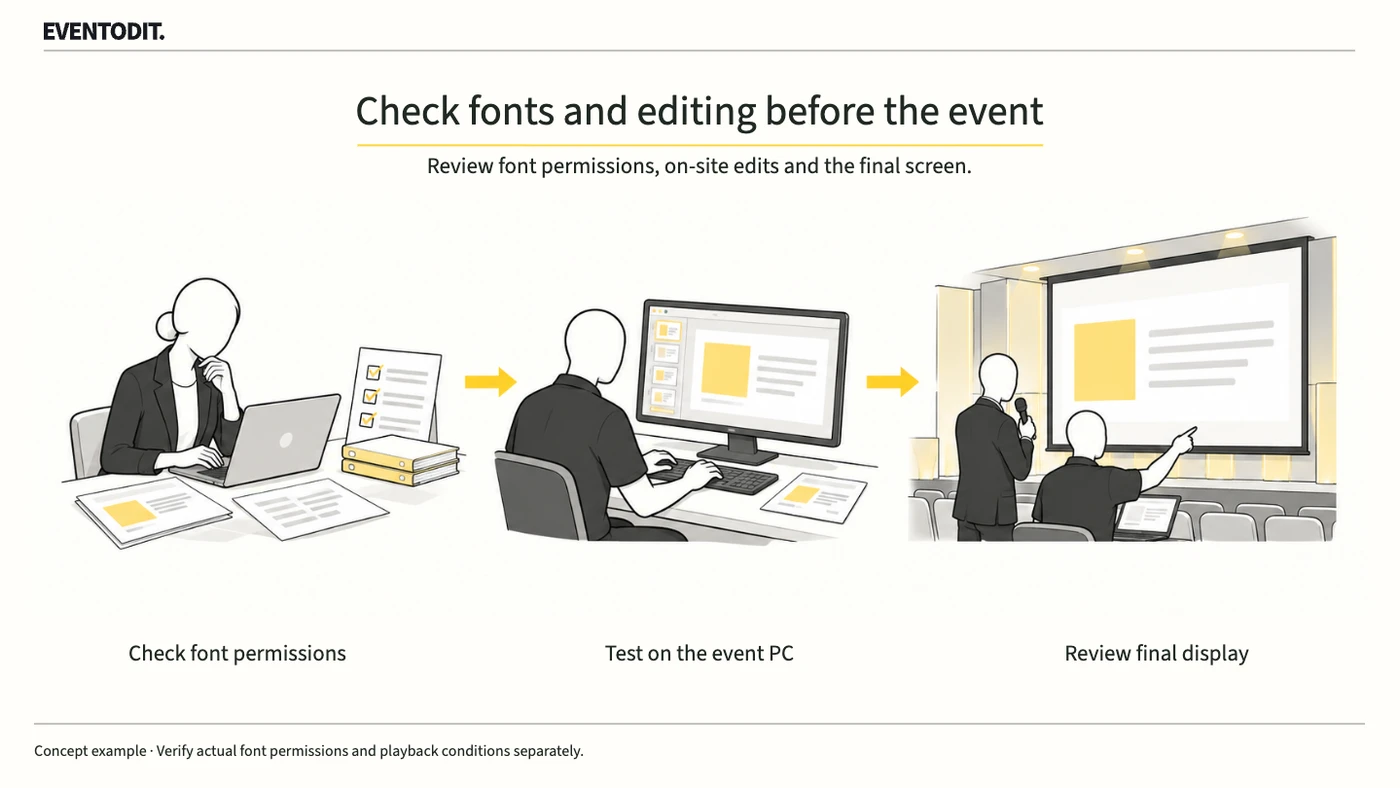
Part 1. Planning and speaker coordination
“Identify likely on-site edits first, and separate the presentation file from the editable working copy.”
- Confirm the editing scope: Ask the speaker whether names, job titles, figures or wording may need changes on the day. Distinguish a deck that only needs to display from one that must remain editable.
- Preserve the original and separate the working copy: Back up the submitted original, create a separate working copy and appoint an owner for edits. Record the final presentation file’s location and version.
- Distinguish web preview from desktop checks: A correct online preview does not establish identical desktop PowerPoint editing or output at the venue. Verify the actual application and equipment.
- Retain edit and approval records: Record the final filename, PC and application version, edits, any font substitution and the speaker’s visual confirmation. Confirm final wording and the audience display before fixing the presentation copy.
Part 2. Presentation production and design
“Check both the embedded character scope and editing rights, and agree an alternative if there are restrictions.”
- Check character embedding for edits: If new text must be entered in the same font on site, review font embedding and the all-characters option in a supported desktop PowerPoint version. Embedding only used characters can reduce file size but limit subsequent editing. The all-characters option does not create glyphs missing from the font or guarantee editing on every system.
- Check embedding settings and licence conditions: Some fonts cannot be embedded even when the option is selected. The producer should distinguish Preview/Print, Editable, Installable and Restricted embedding permissions and verify the actual licence. Permission settings alone do not establish all contractual usage rights.
- Agree alternatives when restricted: If embedding or editing is disallowed or does not work on the actual PC, agree a replacement font, a revised file from the producer, or a final output that does not require editing, and recheck it. Do not assume a system font is present or renders identically on the destination PC.
- Separate embedding from font-file redistribution: Embedding a font in a presentation does not itself permit extraction or separate redistribution of the original font file. Check the licence for the intended use.
- Identify likely editsAsk the speaker which names, wording and symbols may change.
- Check rights and character scopeThe producer checks embedding permission and the all-characters option.
Restricted or unverified
Conditions confirmed
- Check edits on the final PCThe presentation technician reviews font, wrapping and overflow, then saves the final copy.
Part 3. Presentation and on-site technical lead
“Do not check existing text alone. Test new characters on the actual presentation PC and reopen the final file.”
- Test on the actual equipment and connection conditions: Open a working copy on the actual event PC and PowerPoint version. Automatic cloud-font downloads can require an internet connection. Reproduce the intended venue connection conditions and check display and editing in an approved offline test environment.
- Enter new characters and review layout: Temporarily type Korean, Latin or special characters that may actually be needed but were absent from the original. Check substitution, wrapping and overflow, and verify the font itself supports those characters.
- Inspect constrained areas: Check speaker name panels, chart cells and small annotations as well as titles; these can shift when font width or height changes.
- Remove test text and verify the final file: Remove temporary text and restore approved wording or apply agreed edits. Save and reopen the file, then check both the actual presentation and audience displays before fixing the final copy.
- Recheck every slide after a font change: If a replacement font is used, review wrapping, text-box overflow and layout throughout the deck and obtain the speaker’s approval.
Use the original records and supporting templates
Keep the speaker-approved presentation list and final file as the reference. Attach the editing scope, font embedding and editable-licence evidence, actual PC/PowerPoint version, offline new-character test and layout results for each file/version to the existing review record. The [media handover and playback record](/en/templates/video-handover.html) supports final-file, audience-screen/audio and use-approval handover. Separately link font-rights evidence, removal of test text and full rechecks after changes.
Final check before use: Before editing and presenting the slides on site, cross-check font embedding and editing rights, the actual presentation PC’s connection conditions and test-character results.
Conditions for applying this elsewhere
Confirm the font creator’s embedding/editing permission and actual desktop PowerPoint version. Font-file redistribution rights are separate.
Information not established
No particular font permission or actual PC/application editing result has been tested.
Reference material
Have a correction or additional evidence? Request a correction